HIS 332: Ancient Mediterranean Empires

Welcome!

This research guide is for the history course, Ancient Mediterranean Empires. Here, you should be able to find primary and secondary resources, sorted by the region(s) to which they are relevant. You may not be able to traipse through Rome and touch every material like Mary Beard, or take them out of their habitat and install them in your local museum, but you will be able to find resources to interact with in order to absorb their information, grapple with the context and information, and produce a meaningful research project.

Ancient Mediterranean

British Museum

The British Museum has several artifacts that were taken from the ancient world. 

  © The Trustees of the British Museum. Shared under a Creative Commons Attribution-NonCommercial-ShareAlike 4.0 International (CC BY-NC-SA 4.0) licence.

Fordham Internet History Sourcebook

Fordham University has a collection of ancient sources in their Internet Sourcebook.

JSTOR

JSTOR contains both primary and secondary sources that can help with your research projects.

Metropolitan Museum of Art

The Met has several collections of ancient art to select artifacts from to use as primary sources.

Vessel, Ceramic, Iran

Photographic Archive of Papyri in the Cairo Museum

The Cairo Museum's photographic archive contains a collection of papyrus texts.

Looking Further...

If you want to look outside of the resources provided for you, continue to examine the collections of museums and archives which are based in the areas of your study. Good luck!

Accessing Periodicals and Journals through the Library Catalog

Search for Articles

The Thrift Library catalog provides access to peer-reviewed, scholarly journals and trade journals in digital format via its many databases. 

Locate an Article 

Use the search box in the Thrift Library catalog to search for articles across most of the library's subscription databases.

Not all databases are integrated with our catalog. Searching individual databases will help you cast a wider net. 

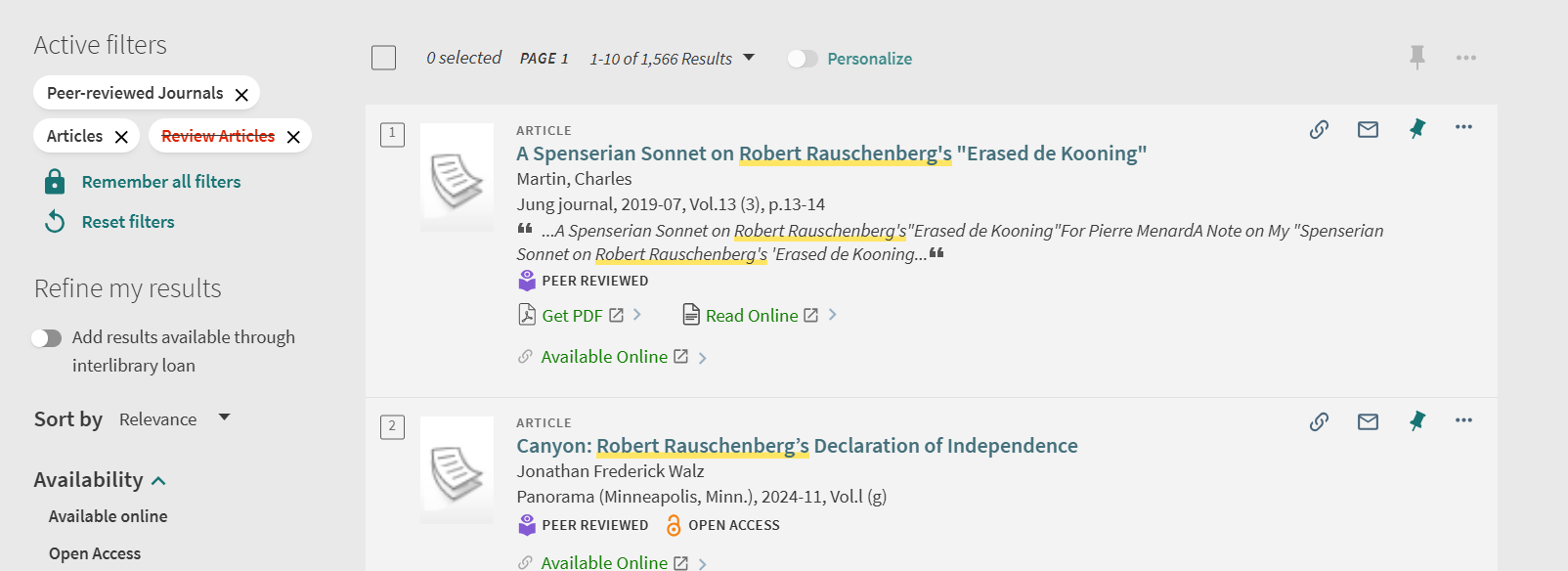
On the search results page, look under "Refine my results" on the left side.

Select "Peer-Reviewed Journals" and "Articles.

To exclude other options, select the red box beside a filter, such as the one for "Review Articles" so that your results are limited to the type of article you want.

An example screenshot with these filters on would be this: 
 

Once you locate an item, open its record and scroll to the "View Online" section to see which database(s) provide access to it.

 Note that databases provide two types of search results:
          1. Actual sources, which include the full-text article.
          2. Surrogate records, which only provide the article's metadata such as the author's name, article and journal titles, publication information, and an abstract and/or summary. 

If the catalog record does provide access to the full-text of the article, follow the PASCAL Delivers instructions to request that it be emailed to you through interlibrary loan (ILL).

Select a database to access the article from the available options. If it provides full text, there should be an option to view/download a PDF. 


Databases from the Library

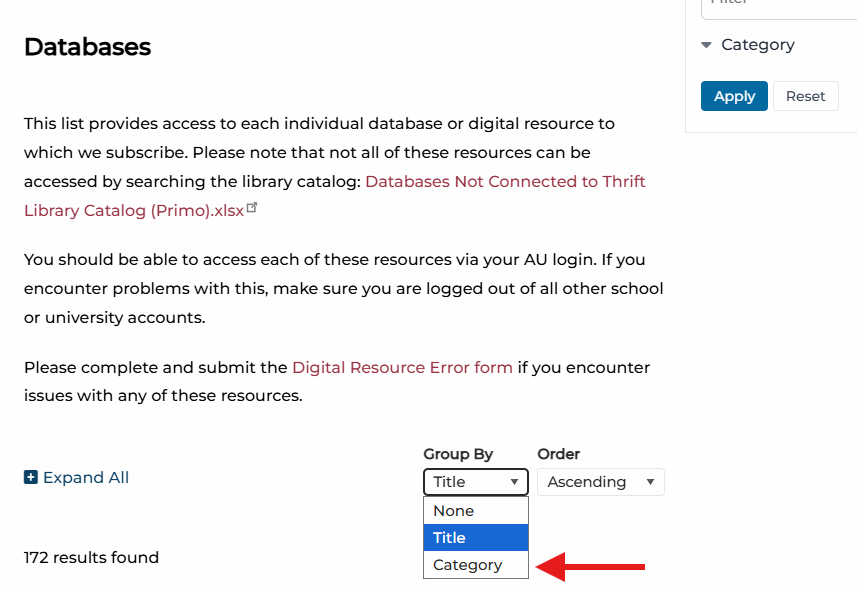
The databases tab of the Thrift Library website includes a feature that filters databases by category, so that users can find all of the databases that are grouped specifically for the course or topic that is relevant to their project. For this course, the relevant groupings would be those of "history," and "interdisciplinary," but if your research topic relates to other subjects, you may be able to find supplementary information in the related subject's grouping.

Accessing a Physical Book

Thrift Library is home to over 70,000 books. They can be very helpful when researching and working on projects. But how do you access them? Here is simple guide showing the two main ways of finding a physical book. 

Step 1: Search for the book

Begin by looking in the Thrift Library catalog. You can then narrow your search from the results page. This video gives you a quick tutorial:

Simple Search
You can do a simple search by entering the book title and/or the author into the search box. If you want to find books on your topic, enter 1-3 keywords that describe your topic. Keyword examples: ancient Greek vases; Vincent van Gogh; sculpting in the 19th century; Chinese wall hangings. 

Advanced Search
For more precise searching use the Advanced Search. Click "Advanced Search" to the right of the search box. Fill out the boxes to limit to specified fields like Title or Author. 

Physical Items
From the search results page you can limit your results to physical books held by Thrift Library. Look to the left side of the page under "Refine my results" and select the following options:
Under Resource Type, select Books
Under Availability, select Held by library

Step 2: Locating the book

Once you have identified the book you wish to use, note the call number (example: LC3731.F45 2002) and navigate to the stacks (shelves) on the second floor of the library. There is signage there to direct you in finding the items according to its call number.

Library of Congress Classification System
A call number is like an address for a book. It tells you exactly where to go to find the book on the shelf. The call number is made up of letters, whole numbers, decimals, a publication date, and occasionally a volume and/or copy number. This allows for each book to have a specific location. One book's location cannot be confused with another book's location. 

Thrift Library uses the Library of Congress Classification System; here is an example: LA 212 .R423 2005
LA specifies the subject classification (L for Education and A for History, so History of Education).  
212 is read as a whole number. 
The next line, .R423, is called the Cutter number. This line is read as a decimal (.R423 would come after .R76). 
2005 is the publication date.  

Step 3: Checkout

Once you have acquired your book, you are free to peruse it at your leisure. If you have finished using it while you are here, return it to the desk. If you want to take it with you, you can check it out. All you have to do for that is to come to the front desk with your student ID, which serves as your library card. Someone should be there to assist you. They will then check out the book and let you know about the due date for return, and  you can check that by signing into the catalog at any time after checking out!

Accessing E-Books and articles

Begin by looking in the Thrift Library catalog. You can then narrow your search from the results page.

 This video gives you a quick tutorial:

Simple Search
You can do a simple search by entering the book title and/or the author into the search box. If you want to find books on your topic, enter 1-3 keywords that describe your topic. 

Keyword examples: ancient Greek vases; Vincent van Gogh; sculpting in the 19th century; Chinese wall hangings.

Advanced Search
For more precise searching use the Advanced Search. 

Click "Advanced Search" to the right of the search box

Fill out the boxes to limit to specified fields like "Title" or "Author." 

Limit Search Results to E-Books
From the search results page you can limit your results to electronic (digital) books held by Thrift Library.

Look to the left side of the page under "Refine my results" and select the following options:

  • Under "Resource Type," select "Books"
  • Under "Availability," select "Available online"

Articles and Journals
From the search results page you can also look at physical items, articles, or essays written on the topic of your choice. 

Use "Refine my results" to hone in on these as well by selecting things like Peer-Reviewed Journals and Articles.

PASCAL and Interlibrary Loan

If Thrift does not have something you are looking for, you can request it from other libraries! 

PASCAL Delivers

PASCAL is a FREE, rapid delivery interlibrary loan (ILL) service for print books and digitized copies of journal articles and book chapters. 

1. Use the catalog as you normally would (i.e. the above instructions.)
2. If you cannot find the item(s), enable "Add results available through interlibrary loan" under the "Refine my results" menu on the left side of the page: 
3. Click on the title of the item you would like to request and click the appropriate button to open the PASCAL Delivers Request Form. Make sure that the bibliographic data you provide in the form is complete and accurate. 
4. Physical books will arrive at the PASCAL library location you selected within 2-14 days. You will receive an email when your items are ready for pickup. Digital items will be emailed directly to your AU email account, typically within 1-5 days.

ILL Request Options

All loaning systems in addition to PASCAL can be found here

For any questions about these services, you can contact reference@andersonuniversity.edu.

Reading LOC Call Numbers

  1. Visit the second floor of Thrift Library, where you'll find the stacks!
  2. Look at the first letter(s). Books are arranged in alphabetical order.
    • N comes before P
    • PL comes before PN
    • Browse the signs on the end of the bookshelves to find your section
  3. When you find the correct shelving area, scan over the numbers on the spine label (102 is one hundred two, not 1-0-2).
  4. After that number, search alphabetically from the other letter after the decimal.
  5. Some copies are arranged by publication date as well, the year will appear at the end of the call number. 

Example

NB 1115 .A32 2020

NB is the section to search for, in alphabetical order between NA and NC

1115 is the numbers before the decimal in numerical order on the shelf.

A32 after the decimal will be in alphabetical and then numerical order.

2020 is the publication year. If another edition of the same book was published in 2018, the two copies will be right next to each other with 2018 appearing first because they are shelved in chronological order.

Chicago-Style Citation Quick Guide

Use the Chicago-Style Citation Quick Guide as an online resource to develop notes and bibliography for your research.

Turabian Quick Guide

The Turabian Quick Guide provides an online resource as a guide for using Chicago/Turabian style.

Reference Management

Thrift Library recommends using Zotero for reference management.

Once you save an article, book, webpage, etc. to Zotero it will generate citations in the style guide of your choice. It also does so much more! With Zotero, you can...

  • Save PDFs and Snapshots of your sources to folders in your library
  • Annotate PDFs (when you copy and paste text from an annotated file it will automatically add quotation marks and the author, date, and page number in a parenthetical citation.)
  • Search your entire library
  • Generate bibliographies 

Zotero is a desktop app that also has a web library for when you need to access your library away from your primary computer. 

Zotero also offers browser connectors that enables users to save sources with a single click. 

More information about reference management as well as other available tools can be found in LibraryDIY under Citation Tools.

Using Zotero

Zotero is a citation guide which you can use to map your research project resources.  Below is a step-by-step photo guide to using Zotero to create a bibliographical citation. However, you can also use the Zotero Connector browser extension, and Zotero will automatically generate the citation for you! Just be sure to check for any errors. 

Daily Life in Ancient Rome

Women in Ancient Rome

MacLachlan, Bonnie. Women in Ancient Rome: A Sourcebook. Bloomsbury Sources in Ancient History. London, England: Bloomsbury, 2013.

This title is only available as a physical copy at Thrift Library, using the LOC Call Number HQ1136 .M34 2013